Find Hidden Cameras with Wi-Fi Scanning - Free Phone Method

Disclosure: This page contains affiliate links. We may earn a commission at no extra cost to you. We only recommend products we've tested or thoroughly researched. Full disclosure.
Need the full method stack? Start with our How to Find Hidden Cameras: Complete 2026 Detection Guide, then use this page for scenario-specific steps.
Network scanning reveals connected devices that shouldn’t be there—including hidden cameras actively streaming your private moments to unknown viewers.
Modern hidden cameras increasingly rely on Wi-Fi connectivity for remote viewing and cloud storage. This dependency creates a digital fingerprint you can detect by analyzing network traffic and connected devices. Unlike visual inspection methods that miss well-hidden cameras, network scanning exposes any surveillance device that needs internet access.
What You’ll Learn
- How to perform comprehensive Wi-Fi network scans using multiple methods
- Which device names and manufacturers signal potential surveillance equipment
- Advanced techniques for identifying cameras that use stealth network settings
- When network scanning won’t work and what alternative methods to use
- Professional-level tools for thorough network security analysis
- How to combine WiFi scanning with phone detection and professional room sweeps
Easy Method: App-Based WiFi Scanning (5 Minutes)
Difficulty: Beginner | Tools: Free smartphone app | Time: 5 minutes
WiFi network scanning is the quickest way to find connected cameras without technical knowledge. Most hidden cameras in hotels and Airbnbs rely on WiFi for remote viewing and cloud storage, making them visible through simple device detection apps.
How It Works
When a camera connects to WiFi, your router’s connected devices list includes it. Apps like Fing show all devices on the network with manufacturer information, device names, and model details. If a device is named “IPCamera,” “IPCAM,” “Camera01,” or shows a camera manufacturer like Dahua or Hikvision, it’s likely surveillance equipment.
Step-by-Step for Beginners
- Download Fing (free on iOS/Android)
- Connect to the WiFi network you want to check
- Open Fing and tap “Start Scan” — wait for the app to discover all devices
- Review the device list and look for:
- Anything with “camera” or “IP” in the name
- Devices with unknown or unfamiliar manufacturers
- Multiple devices with identical/sequential names
- Take a screenshot of suspicious devices for documentation
What Suspicious Names Look Like
- IP Camera, IPCAM, Camera01
- DVR, NVR (recording devices)
- Android-[random numbers] (concealed devices)
- Dahua, Hikvision, Amcrest, Reolink (camera manufacturers)
- Xiaomi, TP-Link Tapo (IoT devices sometimes used for cameras)
What To Do If You Find Something
In a rental property (Airbnb/hotel):
- Document with screenshots
- Contact the host/management immediately with evidence
- Report to the platform (Airbnb has strict policies against surveillance)
On your own network:
- Change your WiFi password to disconnect it
- Block its MAC address in your router settings
- Contact police if you believe it’s illegal surveillance
Key advantage: This method takes 5 minutes, requires no technical expertise, and catches most modern surveillance devices. It’s your first line of defense when checking any WiFi network.
Advanced Method: Network Traffic Analysis (30 Minutes)
Difficulty: Intermediate-Advanced | Tools: Wireshark, nmap, command line | Time: 30 minutes
For serious security sweeps or when app-based scanning isn’t sufficient, advanced network analysis tools identify cameras using stealth configurations, offline recording devices, and professional-grade surveillance systems.
This method catches sophisticated surveillance that basic apps miss, including older analog systems and devices intentionally hiding their network presence.
Tools You’ll Need
Wireshark (free, open-source)
- Captures and analyzes network traffic in real-time
- Shows exactly what data each device is transmitting
- Identifies streaming video and cloud upload patterns
- Available for Windows, Mac, and Linux
nmap (free, command-line)
- Scans for open ports on network devices
- Identifies services running on cameras
- Maps entire network topology
- Shows port states and running services
Advanced IP Scanner (Windows/Mac, free version available)
- Network scanning with technical details
- Shows MAC addresses and open ports
- Identifies devices by manufacturer
- Better detail than smartphone apps
How Cameras Reveal Themselves
Identifying camera traffic:
- Large, consistent data uploads suggesting video streaming
- Connections to cloud services (AWS, Google Cloud, Alibaba Cloud)
- Traffic on camera-specific ports (554 for RTSP, 8080-8090 for web interfaces)
- Regular connection patterns even when “motion” shouldn’t be happening
Camera-specific port detection:
- Port 80/443: Web interfaces for configuration
- Port 554: RTSP protocol (common for video streaming)
- Port 1935: RTMP protocol (live streaming)
- Port 8080-8090: Alternative web interfaces and API access
Step-by-Step Advanced Scanning
Step 1: Map the network with nmap
nmap -sn 192.168.1.0/24(This discovers all devices; replace with your actual network range)
Step 2: Scan for open ports on suspicious devices
nmap -p 80,443,554,8080,8090,1935 [device IP address]Step 3: Identify services running
nmap -sV -p 80,443,554,8080 [device IP address]Step 4: Analyze with Wireshark
- Capture network traffic for 5-10 minutes
- Filter by IP address of suspicious devices
- Look for large data transfers or cloud connections
- Document video streaming signatures
What This Method Catches
- Cameras configured to hide their SSID or use generic names
- Devices attempting to disguise themselves as legitimate network equipment
- Offline-recording cameras that periodically upload footage
- Professional surveillance systems with stealth configurations
- Cellular-connected devices uploading through bridge devices
- Older analog systems with digital interfaces
When to Use Advanced Analysis
- Professional security sweeps for businesses or shared properties
- Situations where basic scanning found suspicious devices you need to verify
- When you suspect sophisticated or professional surveillance
- For documenting thorough evidence before legal action
- When security is critical and you want comprehensive coverage
Key Advantage
Advanced analysis provides ironclad documentation and catches surveillance methods that app-based scanning misses. While more complex, it’s the method used by security professionals and produces evidence that stands up in legal proceedings.
How Does Wi-Fi Network Scanning Detect Hidden Cameras?
Wi-Fi network scanning identifies hidden cameras by detecting their network signatures when they connect to local networks. Most modern surveillance cameras require internet connectivity for features like remote viewing, cloud storage, motion alerts, and firmware updates.
When a camera connects to Wi-Fi, it broadcasts identifying information including:
- Device name (often containing words like “camera,” “IPCam,” or model numbers)
- MAC address (revealing the manufacturer through OUI database lookups)
- Open ports (indicating running web servers for camera interfaces)
- Network traffic patterns (showing data upload consistent with video streaming)
The limitation: This method only finds network-connected cameras. Devices that record to SD cards, use cellular connections, or remain offline won’t appear in network scans. However, most modern hidden cameras are designed with Wi-Fi connectivity, allowing real-time remote access to footage.
What Network Scanning Apps Actually Work?
The most effective network scanning apps combine device discovery with manufacturer identification and port analysis. Based on testing across different network types, here are the tools that consistently deliver results:
User-Friendly Options
Fing (iOS/Android) excels at device identification with its extensive manufacturer database. The app automatically categorizes devices and highlights potential security cameras. Its “Find Hidden Cameras” premium feature specifically flags surveillance equipment.
Advanced IP Scanner (Windows/Mac/Android) provides more technical details including MAC addresses and open ports. Particularly useful for identifying cameras running web interfaces on common ports like 80, 443, or 8080.
Advanced Tools
nmap (command line) offers the most comprehensive scanning capabilities for technical users. Commands like nmap -sn 192.168.1.0/24 discover devices, while nmap -sV -p 80,443,554,8080 [target] identifies services that cameras typically run. See official nmap documentation for complete command references.
Angry IP Scanner (desktop) provides batch scanning with customizable port checks and response time analysis that can reveal devices trying to hide their presence.
For network traffic analysis, Wireshark documentation provides comprehensive guides on packet capture and protocol analysis.
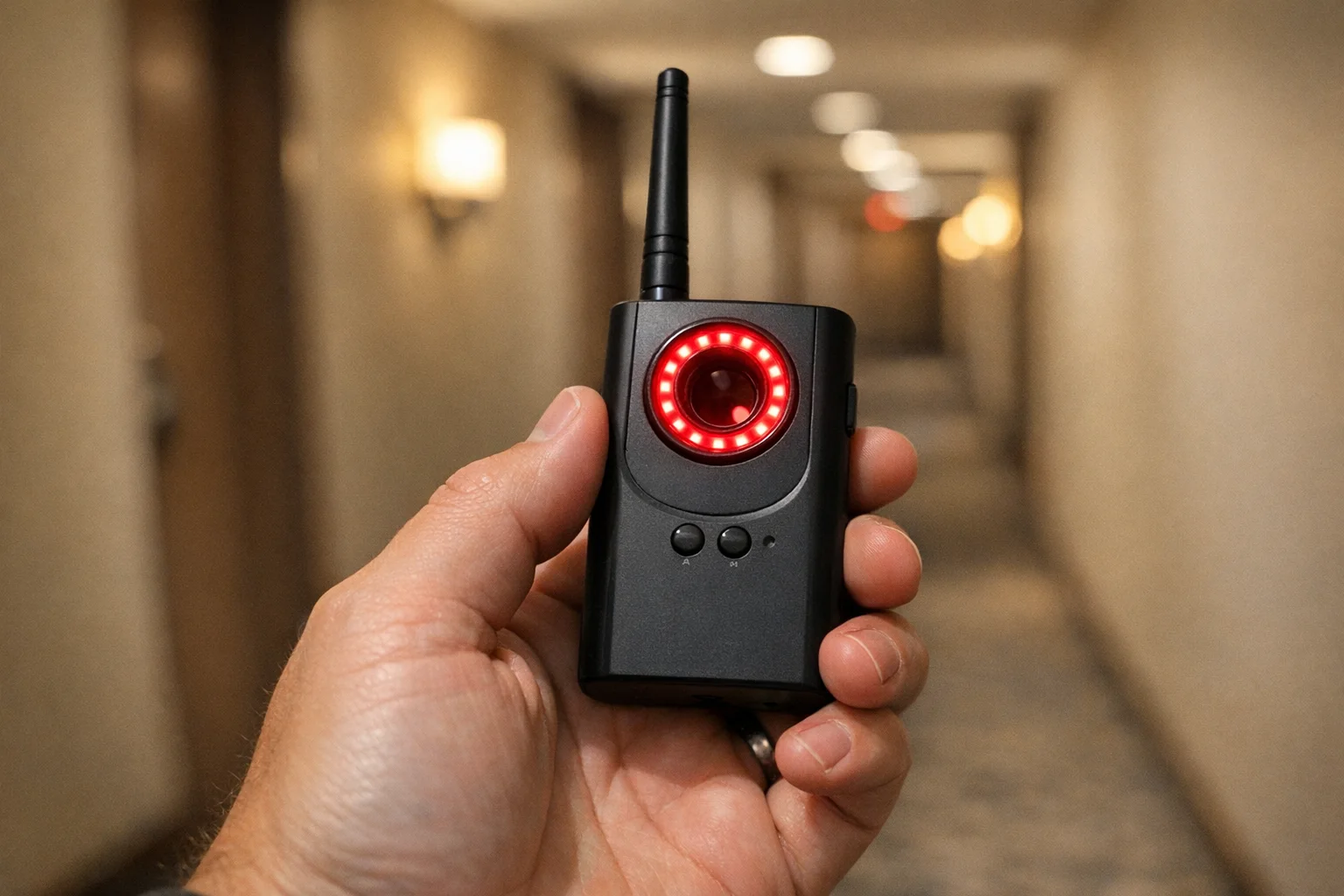
JMDHKK Anti Spy Detector
Best Overall
Combines RF detection with network analysis capabilities
Compare price and specs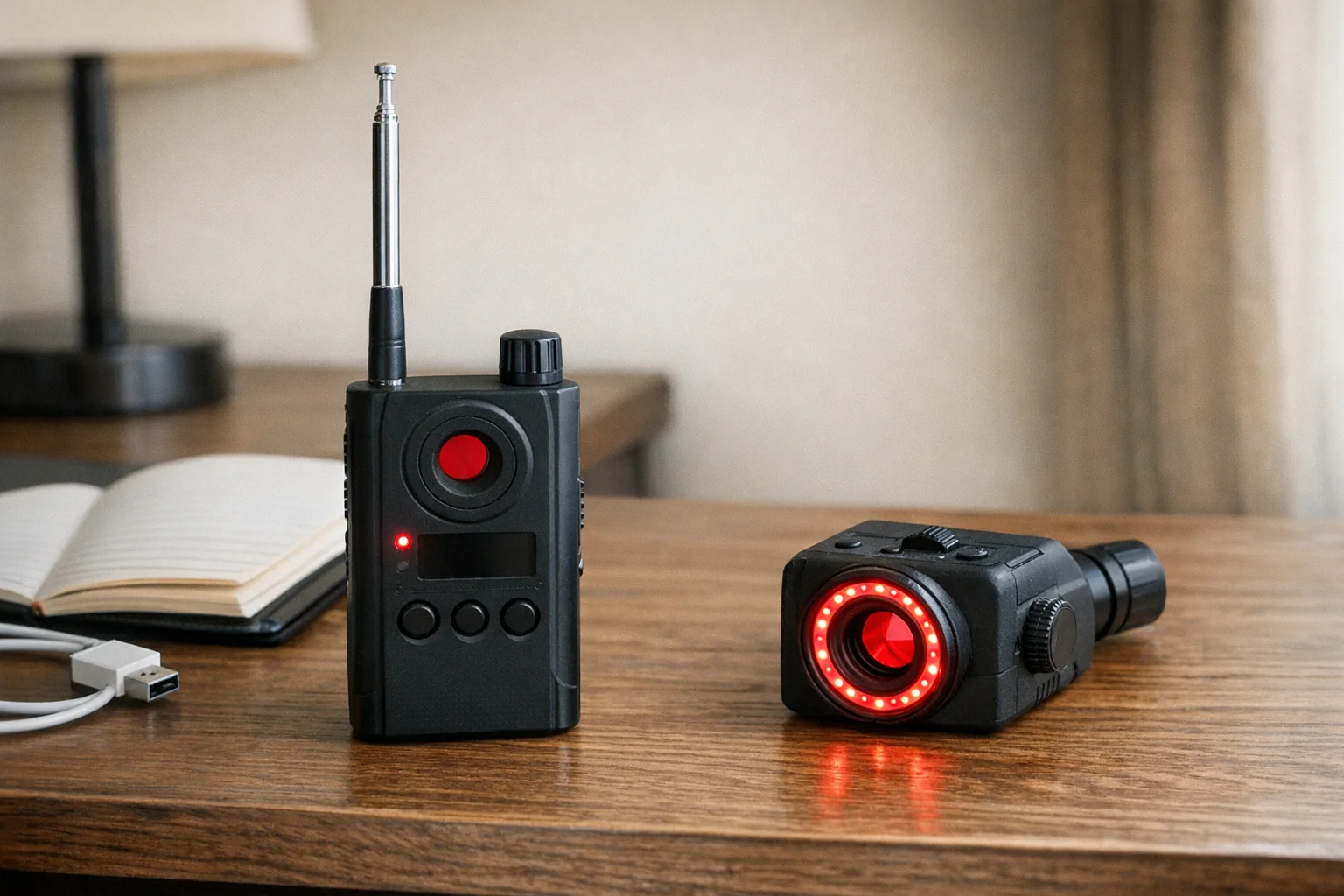
SpyHawk Pro-10G
Professional Grade
Advanced RF and wireless signal detection for comprehensive sweeps
Compare price and specsHow to Perform a Complete Network Scan
Start by connecting to the target Wi-Fi network and documenting baseline devices before beginning your systematic scan.
Step 1: Initial Device Discovery
- Connect to the Wi-Fi network you want to scan
- Open your chosen scanning app (Fing recommended for beginners)
- Run a network discovery scan to identify all connected devices
- Document the results by taking screenshots or noting device counts
Step 2: Analyze Device Information
Look for these red flags in your scan results:
- Suspicious names: IPCamera, IPCAM, Camera01, DVR, NVR, or generic names like “android-123456”
- Camera manufacturers: Dahua, Hikvision, Axis, Ubiquiti, Amcrest, Reolink
- Unknown devices: Anything you can’t identify or doesn’t belong to known occupants
- Multiple similar devices: Several devices with identical or sequential names
Step 3: Deep Device Investigation
For suspicious devices, perform additional checks:
- Note the IP address and MAC address
- Attempt to access the device by entering its IP address in a web browser
- Check for open ports using port scanning features
- Monitor network traffic to see if the device is actively transmitting data
What to Do When You Find Suspicious Devices
If network scanning reveals potential surveillance equipment, your response depends on your location and legal relationship to the property.
In Rental Properties (Airbnb/Hotels)
- Document everything with screenshots and photos
- Contact the host/management immediately
- Report to the platform (Airbnb has policies against unauthorized surveillance)
- Consider alternative accommodation if cameras are confirmed
On Your Own Network
- Change Wi-Fi passwords to disconnect unauthorized devices
- Access your router’s admin panel to permanently block suspicious MAC addresses
- Update firmware on all your legitimate devices
- Consider professional security assessment if multiple unknown devices appear
In Workplace/Public Spaces
- Report to appropriate authorities (HR, building management, local law enforcement)
- Document the discovery with detailed evidence
- Avoid attempting to access the suspicious devices directly
Advanced Network Analysis Techniques
Professional-level network analysis reveals cameras using stealth configurations or enterprise-grade hiding methods.
MAC Address Investigation
Every network device has a unique MAC address that reveals its manufacturer. Use OUI lookup tools to identify devices:
- First 6 characters indicate the manufacturer
- Camera manufacturers often register multiple OUI ranges
- Generic/unknown OUIs might indicate devices trying to hide their identity
Port Scanning for Camera Services
Hidden cameras commonly run services on specific ports:
- Port 80/443: Web interfaces for camera configuration
- Port 554: RTSP streaming protocol for video feeds
- Port 1935: RTMP streaming for live broadcasts
- Ports 8080-8090: Alternative web interfaces
Network Traffic Analysis
Advanced users can monitor network traffic to identify cameras:
- Consistent upload patterns suggesting continuous video streaming
- Large data transfers during motion detection events
- Connections to cloud services like AWS or Google Cloud for video storage
When Network Scanning Doesn’t Work
Network scanning has limitations that require understanding alternative detection methods for complete security coverage.
Offline Recording Devices
Cameras that store video on SD cards or internal memory don’t need network connectivity. These devices require:
- Physical inspection using flashlights and visual searches
- RF detection to find wireless transmission signals
- Infrared scanning to spot night vision LED arrays
Cellular-Connected Cameras
Some surveillance systems use cellular data connections to avoid local network detection:
- Check for cellular signal boosters or external antennas
- Use RF detectors that scan cellular frequency bands
- Monitor for unusual cellular activity in isolated locations
Guest Network Isolation
Enterprise or security-conscious networks might isolate devices:
- Scan multiple networks if available (2.4GHz vs 5GHz, guest vs main)
- Check for hidden SSIDs using tools like WiFi Analyzer
- Look for mesh network nodes that might segment traffic
Building a Professional Detection Toolkit
Combine network scanning with complementary detection methods for comprehensive surveillance discovery.
A complete toolkit includes:
- Network scanner (Fing or Advanced IP Scanner)
- RF detector for non-network cameras
- Infrared detector for night vision cameras
- Physical inspection tools (flashlight, magnifying glass)
- Documentation equipment (camera for evidence)
For professionals or high-security situations, consider specialized equipment that combines multiple detection methods into integrated solutions.
Frequently Asked Questions
Can Wi-Fi scanning find all hidden cameras?
No, Wi-Fi scanning only detects cameras connected to the network. Cameras that record to SD cards or use cellular connections won’t appear in network scans. However, network-connected cameras represent the majority of privacy violations since they enable remote viewing and cloud storage features.
What devices show up as suspicious in network scans?
Look for devices with names like “IPCamera”, unknown manufacturers, devices that don’t belong to you, or MAC addresses from camera manufacturers like Dahua or Hikvision. Generic names like “android-123456” or sequential numbering can also indicate hidden surveillance equipment.
Is it legal to scan Wi-Fi networks for cameras?
Yes, scanning networks you have permission to use (like Airbnb Wi-Fi) is legal. However, accessing devices without permission or on networks you don’t own could violate laws. Always respect network owners’ policies and local regulations.
Which network scanning app works best for finding cameras?
Fing is the most user-friendly with excellent manufacturer identification, but Advanced IP Scanner provides more technical details. For advanced users, nmap offers the most comprehensive scanning capabilities with custom port checks and service detection.
How often should I scan networks when traveling?
Scan immediately upon arrival at any new accommodation, and recheck if you notice new devices or suspicious activity during your stay. Regular travelers should also scan after checkout to ensure no personal devices were left behind or compromised.
What to Do Next
Network scanning provides crucial intelligence about potential surveillance devices, but it’s just one component of comprehensive privacy protection. Combine these techniques with physical inspection methods and professional-grade detection equipment for complete coverage. If you want to compare where Wi-Fi scans fail versus RF, lens, and thermal workflows, review our detection methods comparison.
Start with the free Fing app for your next hotel or Airbnb stay. The few minutes spent scanning could reveal privacy violations that would otherwise go undetected. If your concern is a recently purchased property instead of travel accommodation, use this new-home camera sweep playbook after your first router reset.
Related Guides
Smart Picks
Smart Picks for This Guide
We curated this short shelf from high-performing recommendations for faster buying decisions.

SpyFinder Pro
Most accurate lens detection
Best when you need confident detection of hidden wired and non-transmitting devices.
- Consistent lens performance
- Clear pass/fail indicator
- Strong build quality

JMDHKK K18+
Most complete detection method
Four detection modes for quick room sweeps in hotels, Airbnbs, and rentals.
- RF + lens + magnetic + audio
- Affordable
- Simple sensitivity controls
Navfalcon 2025 RF Detector
Best value RF upgrade
Higher sensitivity for RF-focused scans and fewer misses on battery-powered units.
- Improved RF filtering
- Longer scan reach
- Budget-sensitive option
We earn commissions from qualifying Amazon purchases. Full disclosure.
Get the free checklist
Printable hidden camera detection checklist + gear deals. Free, no spam.
Free updates. Unsubscribe anytime.
Frequently Asked Questions
Can Wi-Fi scanning find all hidden cameras?
What devices show up as suspicious in network scans?
Is it legal to scan Wi-Fi networks for cameras?
Which network scanning app works best for finding cameras?
How often should I scan networks when traveling?
What to Do Next
Related Guides
Best Hidden Camera Detector Apps (2026): iPhone & Android
The best hidden camera detector apps for iPhone and Android — what they find, what they miss, and when to upgrade to dedicated hardware.
Read guide Workplace Surveillance Detection in Your Home Office (2026)
Methods to identify covert workplace monitoring at home, from software logs to unusual network activity and hidden devices, while protecting your privacy.
Read guide
How to Find Hidden Cameras with iPhone and Android (2026)
Use your iPhone or Android to detect hidden cameras with built-in tools. Step-by-step: flashlight sweep, IR check, WiFi scan, and when to upgrade to gear.
Read guide