Workplace Surveillance Detection in Your Home Office (2026)

Disclosure: This page contains affiliate links. We may earn a commission at no extra cost to you. We only recommend products we've tested or thoroughly researched. Full disclosure.
Need the full method stack? Start with our How to Find Hidden Cameras: Complete 2026 Detection Guide, then use this page for scenario-specific steps.
According to Hubstaff’s 2025 employee monitoring report, over 73% of employers now monitor remote or hybrid workers (Hubstaff Employee Monitoring Statistics), yet many employees have no idea they’re being watched. If you work from home, your employer might be tracking your keystrokes, recording your screen, or even accessing your webcam without your knowledge.
Disclaimer: Employment monitoring laws vary significantly by state and country. This article provides general guidance and is not legal advice. Consult an employment attorney for jurisdiction-specific questions.
What You’ll Learn
- How to detect software-based employee monitoring on your devices
- Methods to find hidden cameras in your home office
- Network monitoring techniques to spot surveillance traffic
- Legal considerations and your privacy rights as a remote worker
How Can I Tell if My Employer is Monitoring My Computer?
Check your Task Manager or Activity Monitor immediately – unknown processes running in the background are the most common sign of monitoring software.
Employee monitoring software often runs silently, but it leaves digital fingerprints. Look for processes with names like “TeamViewer,” “DeskTime,” “RescueTime,” or actual monitoring software like Hubstaff, Teramind, ActivTrak, Time Doctor, and Veriato that consume unusual amounts of CPU or memory. Note: svchost.exe is a legitimate Windows system process and should not be considered suspicious.
Windows users: Press Ctrl+Shift+Esc to open Task Manager. Click the “Processes” tab and sort by CPU usage. Look for unfamiliar applications or processes using network resources constantly.
Mac users: Open Activity Monitor (Applications > Utilities). Check both CPU and Network tabs for suspicious activity.
Other telltale signs include:
- Your webcam LED turning on unexpectedly
- Slower computer performance during work hours
- Unusual network activity when you’re not browsing
- Screenshots being taken automatically (you might hear the camera sound)
- Mouse cursor moving slightly when you’re not touching it
What Types of Surveillance Should I Look For?
The most common monitoring methods include screen recording, keystroke logging, webcam access, and email tracking – each leaving distinct traces you can detect. For physical surveillance, combine software checks with WiFi network scanning and phone detection methods.
Software-Based Monitoring
Screen Recording Software: Constantly captures your screen activity. Look for processes that access graphics drivers or create large temporary files.
Keystroke Loggers: Record every key you press. They often run as system services and may slow down typing response times.
Webcam Monitoring: Accesses your camera remotely. Watch for the LED indicator and check camera permissions in system settings.
Email and Communication Tracking: Monitors your messages and web browsing. Check browser extensions and email client add-ons you didn’t install.
Physical Surveillance
Hidden cameras might be installed if your employer provided your home office equipment or if you work in a company-owned property.
Common hiding spots include:
- USB chargers and adapters
- Picture frames facing your workspace
- Smoke detectors or air fresheners
- Computer monitors (cameras can be embedded)
- Decorative objects on shelves
Our Recommended Privacy Protection Tools
Since the vast majority of employer surveillance is software-based, camera detectors aren’t the right tool here. Instead, protect your digital privacy with these essentials:
VPN for Work Privacy: A reputable VPN encrypts your internet traffic, making it significantly harder for employer monitoring software to log your browsing activity on personal devices. This is the single highest-impact privacy tool for remote workers.
Our top recommendation is ProtonVPN — it’s open source, independently audited, and based in Switzerland (outside US and EU surveillance agreements). Mullvad is another excellent choice that’s so privacy-focused they don’t even require an email to sign up. For a solid mainstream option with fast speeds, NordVPN is also trustworthy (Lithuanian-owned, audited by Deloitte).
Why we don’t recommend certain VPNs: Some popular VPN brands (ExpressVPN, Private Internet Access, CyberGhost) are all owned by the same parent company, Kape Technologies. We prefer recommending providers with independent ownership and verifiable privacy practices.
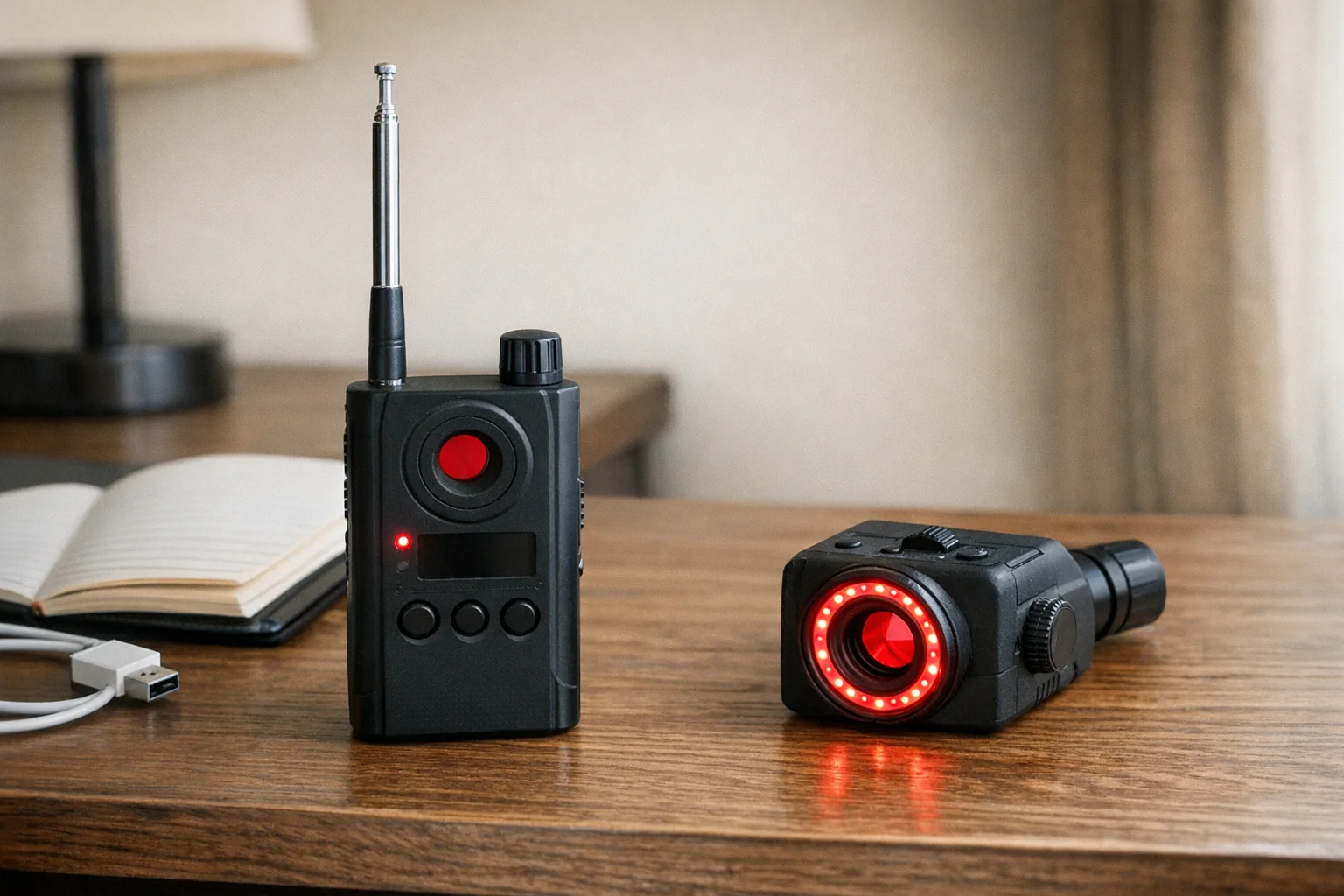
EYSOFT Webcam Cover Slide (3-Pack)
Essential for Every Laptop
Ultra-thin 0.022-inch sliding covers for your laptop and monitor webcams — blocks unauthorized camera access instantly
Compare price and specs SightPro Privacy Screen (14-inch)
Best for Shared Spaces
Magnetic-mount privacy filter limits screen visibility to a narrow viewing angle — prevents shoulder-surfing in coffee shops and co-working spaces
Compare price and specsConcerned about physical cameras too? If your employer provided home office equipment or you work in a company-owned space, hidden cameras are a separate risk. See our complete room sweep guide for physical detection methods.
How Do I Check My Network for Surveillance Traffic?
Monitor your network activity using built-in system tools or third-party software – surveillance software constantly sends data to external servers.
Most employee monitoring creates consistent network traffic as it uploads screenshots, keystrokes, or video feeds to company servers.
Using Built-in Tools
Windows: Open Resource Monitor (type “resmon” in Start menu). Go to the Network tab and look for processes with high network activity you don’t recognize.
Mac: Use Activity Monitor’s Network tab to see which apps are sending/receiving data constantly.
Third-Party Network Monitoring
Tools like Wireshark or GlassWire can provide detailed network analysis, showing exactly where your data is going. Look for:
- Regular uploads to unknown IP addresses
- Consistent data transmission every few minutes
- Large amounts of outgoing traffic during work hours
- Connections to monitoring service domains
Step-by-Step Detection Guide
- Check Running Processes — Open Task Manager/Activity Monitor and identify unfamiliar software running continuously
- Scan for Physical Devices — Use a camera detector app or RF detector to sweep your workspace for hidden cameras
- Monitor Network Traffic — Watch for unusual data uploads and unknown external connections
- Review System Permissions — Check which apps have access to your camera, microphone, and screen recording
- Look for Installation Evidence — Check recently installed programs and browser extensions you didn’t add
- Test Webcam Behavior — Cover your camera and see if any work applications complain or stop functioning
What Are My Legal Rights Regarding Workplace Surveillance?
Employers must generally inform employees about monitoring in most jurisdictions – but the specific requirements vary significantly by location and employment type.
In the United States, federal law requires consent for audio recording but allows video monitoring in most circumstances. However, state laws vary widely:
- California: Requires two-party consent for recording conversations under Penal Code §632
- New York: Allows monitoring if employees are notified, governed by Penal Law §250.00
- Texas: Permits most workplace monitoring with or without notification under Labor Code §52.001
European Union: GDPR (General Data Protection Regulation) requires explicit consent and transparency about data collection. Employers must justify monitoring as necessary for legitimate business interests. See the EFF’s guide to workplace surveillance for comprehensive privacy information.
Key questions to ask:
- Did you sign a monitoring agreement in your employment contract?
- Were you explicitly told about surveillance methods?
- Is the monitoring proportionate to business needs?
- Are you being monitored during personal time on personal devices?
Frequently Asked Questions
How can I tell if my employer is monitoring my computer?
Check Task Manager for unknown processes, monitor unusual network activity, watch for unexpected webcam LED activation, and scan for keylogger software using anti-malware tools. Look for applications running constantly in the background that you didn’t install, especially those consuming network resources.
Is it legal for employers to monitor remote workers without consent?
Laws vary by location, but most jurisdictions require employers to inform employees about monitoring. Covert surveillance is typically only legal in limited circumstances with legitimate business reasons. Check your employment contract and local privacy laws for specific requirements.
What are the most common types of employer surveillance?
Common surveillance methods include screen recording software, keystroke logging, webcam monitoring, email and message tracking, internet browsing history collection, time tracking applications, and location monitoring on company devices.
Can I detect hidden cameras in my home office?
Yes, use smartphone camera detection apps to scan for camera lenses, check for unusual objects or devices, look for blinking infrared lights, and use RF detectors to find wireless surveillance devices. Pay special attention to items provided by your employer.
What should I do if I find unauthorized surveillance?
Document the evidence with screenshots or photos, review your employment contract and local privacy laws, consult with HR about company monitoring policies, contact legal counsel if laws appear violated, and consider reporting to relevant privacy authorities if necessary.
What to Do Next
If you suspect unauthorized surveillance, start with the detection methods outlined above. Document everything you find – screenshots of suspicious processes, photos of potential hidden cameras, and records of unusual network activity.
Review your employment agreement carefully to understand what monitoring you’ve consented to. If you discover surveillance that wasn’t disclosed, consult with an employment attorney about your rights and options.
Related Guides
Smart Picks
Smart Picks for This Guide
We curated this short shelf from high-performing recommendations for faster buying decisions.

SpyFinder Pro
Most accurate lens detection
Best when you need confident detection of hidden wired and non-transmitting devices.
- Consistent lens performance
- Clear pass/fail indicator
- Strong build quality

JMDHKK K18+
Most complete detection method
Four detection modes for quick room sweeps in hotels, Airbnbs, and rentals.
- RF + lens + magnetic + audio
- Affordable
- Simple sensitivity controls
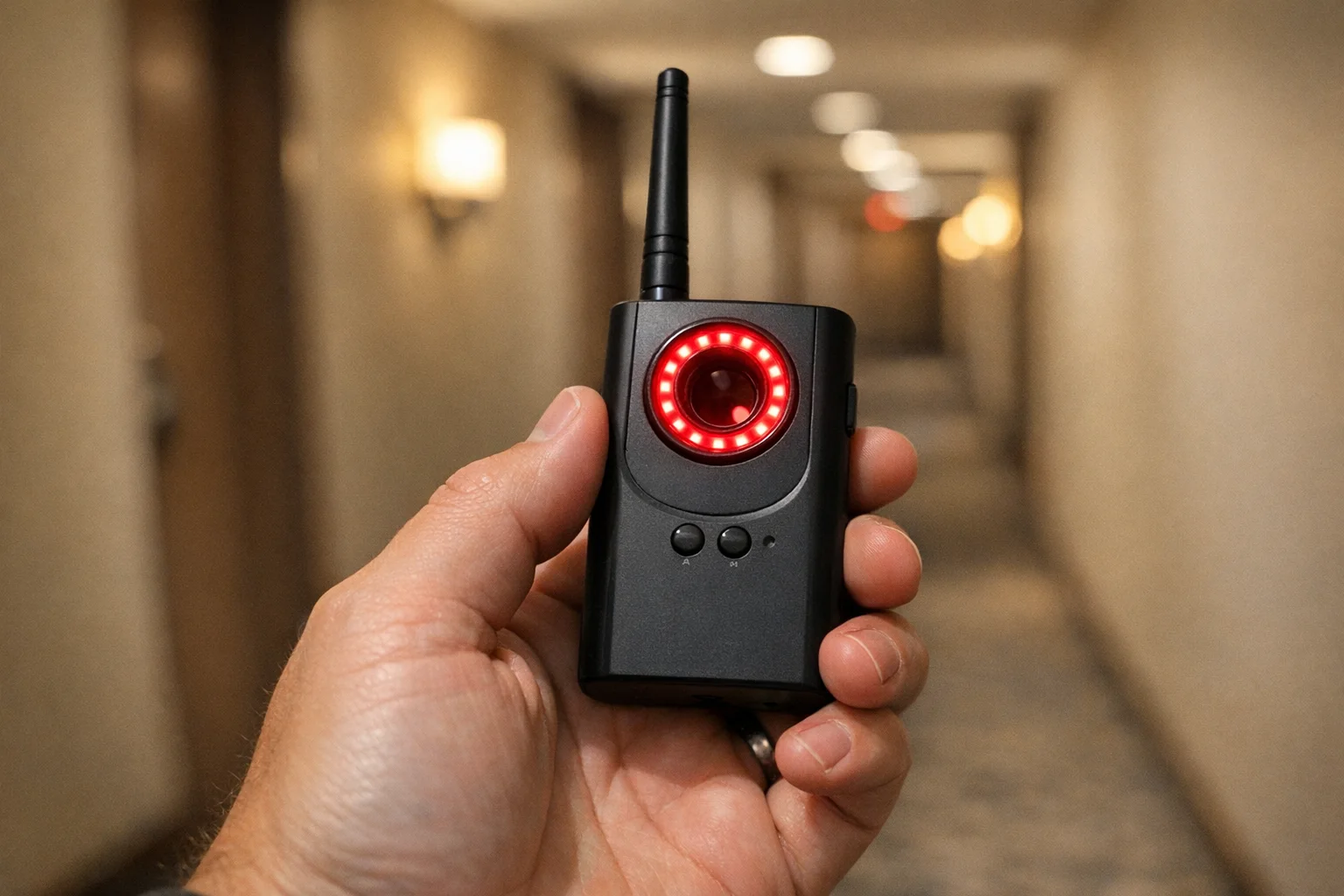
Navfalcon 2025 RF Detector
Best value RF upgrade
Higher sensitivity for RF-focused scans and fewer misses on battery-powered units.
- Improved RF filtering
- Longer scan reach
- Budget-sensitive option
We earn commissions from qualifying Amazon purchases. Full disclosure.
Get the free checklist
Printable hidden camera detection checklist + gear deals. Free, no spam.
Free updates. Unsubscribe anytime.
Frequently Asked Questions
How can I tell if my employer is monitoring my computer?
Is it legal for employers to monitor remote workers without consent?
What are the most common types of employer surveillance?
Can I detect hidden cameras in my home office?
What should I do if I find unauthorized surveillance?
What to Do Next
Related Guides
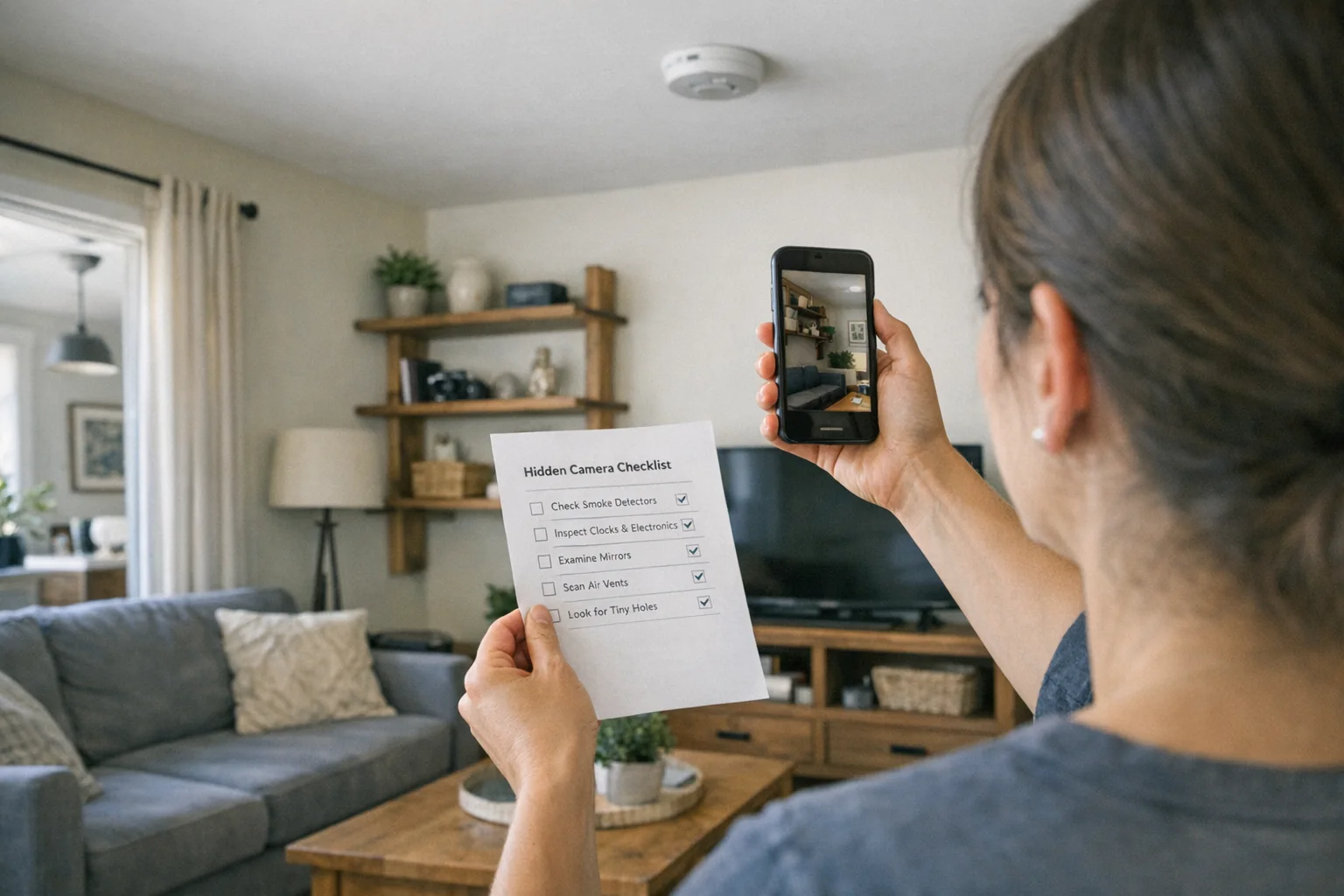
Best Hidden Camera Detector Apps (2026): iPhone & Android
The best hidden camera detector apps for iPhone and Android — what they find, what they miss, and when to upgrade to dedicated hardware.
Read guide
How to Find Hidden Cameras with iPhone and Android (2026)
Use your iPhone or Android to detect hidden cameras with built-in tools. Step-by-step: flashlight sweep, IR check, WiFi scan, and when to upgrade to gear.
Read guide Hidden Camera Detection Methods Compared: Which Works Best
Compare RF detectors, lens finders, thermal tools, and phone apps by budget, reliability, & real-world limits so you can build a stronger prevention stack.
Read guide